Skip to product information
1 of 14

The Creativity City

Pug Pirate Paint by Number for Procreate

Pug Pirate Paint by Number for Procreate

Regular price $3.99 USD
Regular price Sale price $3.99 USD
Sale Sold out
Quantity

Enjoy the paint by number experience in Procreate with this Pug Pirate Paint by Number!!! If you’re looking for something fun to do in Procreate other than draw, this is a great option! It’s fun and relaxing to do, and is so cute!!!

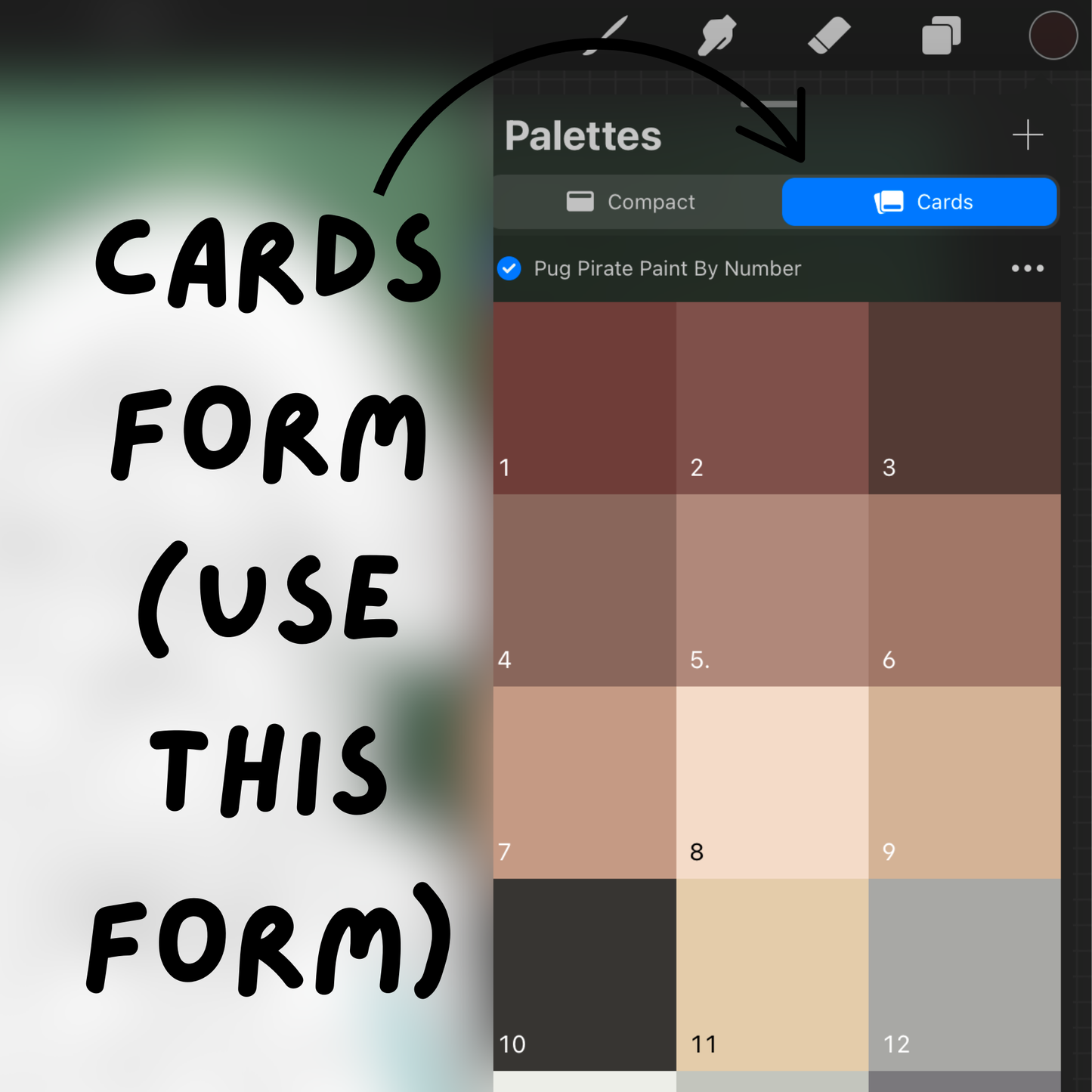
How it works: download the files after purchase, then upload them to Procreate. Then, start filling in the picture by number (it works best to use ColorDrop for this)! For a more detailed explanation of how to use this paint by number, please view the product pictures. 

Don’t know what ColorDrop is? Learn about it here. Don’t know what the ColorDrop threshold is? Learn about it here

Like this paint by number and our brushes and brush sets? Maybe you should consider our Gold Membership, which gives you access to this paint by number and all of our brushes and brush sets, including the ones to come, for free! How it works: you buy the Gold Membership once and then you can checkout any of our brushes for no price. Check out the Gold Membership here.

How to download and upload to Procreate: after purchase, you will get an email with the download link. Tap the download link and click download now. At the top of the screen in the middle right, there will be a blue arrow in a circle. If there is no bar with blue in it under the arrow, tap the arrow (if there is the bar, wait until the bar is filled with blue and disappears). Next, tap the download. You will be brought to files, where a new zip file will appear. Tap the zip file and a new folder will appear. These are the downloads. Open the folder and tap the swatches file. This will bring you to Procreate. Now is a good time to create a 2388x1668 px canvas. On this canvas, go to Actions (it looks like a wrench in top left corner). Tap “Add” and then “Insert a file”. Upload the pug pirate background file. Tap the Transform button (this button is in the top, middle left of the screen and looks like a computer mouse). Repeat this, but upload the pug pirate outline file and then the number file. After this, you can begin painting by number! View the product pictures for tips on how to use this paint by number!

THIS PAINT BY NUMBER IS MEANT FOR PROCREATE ONLY. IF YOU DON’T OWN PROCREATE, PLEASE DON’T BUY THIS. PLEASE DON’T RESELL THIS PRODUCT WITHOUT PERMISSION FROM THE OWNER. THIS IS A DIGITAL PRODUCT THAT IS MEANT TO BE USED IN PROCREATE.

View full details

Read this before you buy!

This is a digital product meant to be used with the Procreate app. If you don’t have Procreate, this product will not work.

This product must be downloaded to be used. After purchase, you will be able to download this brush. You will receive an email with a download link. For download instructions you can watch this video or read these instructions:

1. Tap the download link

2. A page will appear with a “Download now” button. Tap this button.

3. There will be a popup asking if you would like to download the file. Tap “Download”.

4. In the top right corner of your screen will be an arrow pointing down in a circle. Tap it. It will show you your downloads.

5. Tap the item you bought and just downloaded, which should be at the top.

6. If it is a single file, you will be brought to Procreate and the item will appear.

If the download has multiple files, you will be brought to the app Files instead of Procreate. There you will find a new zip folder of what you just downloaded. Tap the folder and it will create another folder. Tap on this new folder and you will see your downloads. Tap on any one of the downloads and it will import into Procreate.

7. Where to find your download in Procreate

If your item is a single brush, it will be in the imported brush set at the bottom of the brush library.

If your item is a brush set, the brush set will appear in the brush library.

If your item is a color palette, you will find it in the palette section of Colors.

If your item is an image, it will not automatically import into Procreate. You will have to go to Procreate and import the image. You can do this by going to a canvas in Procreate, tapping Actions (looks like a wrench), tapping the Add section, and tapping “Insert a file”. Then find the file and upload it.

If you have any questions, feel free to contact us at thecreativitycity@gmail.com

If you like our brushes and brush sets, consider getting our Gold Membership! It’s a one time low fee and then you get ALL of our brushes and brush sets FREE! Learn more here